
Install in Claude
Step-by-step: add the levirge/search plugin marketplace on claude.ai, the desktop app or Cowork, and install the Search plugin — no terminal needed.
claude.ai in the browser, the Claude desktop app and Cowork share the same settings,
so these steps work on all three. Search installs as a plugin from the levirge/search
GitHub marketplace — five steps, no terminal. Plugins need a paid plan (Pro, Max, Team
or Enterprise); on the free plan use the connector
below.
1 · Open the plugin marketplace
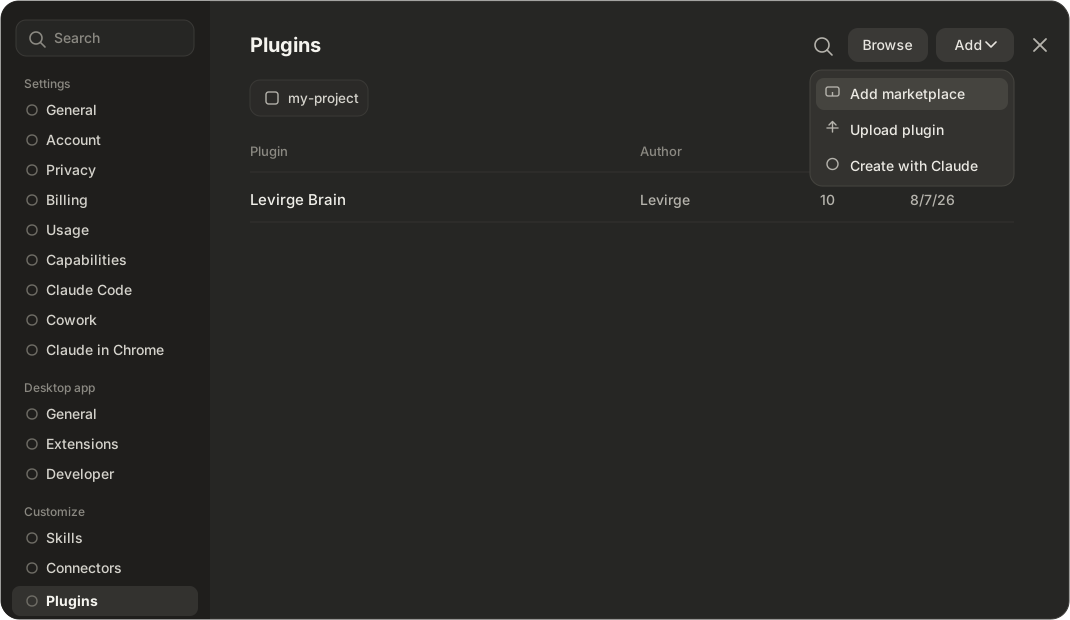
Open Settings → Customize → Plugins, then click Add → Add marketplace.
2 · Choose the marketplace source
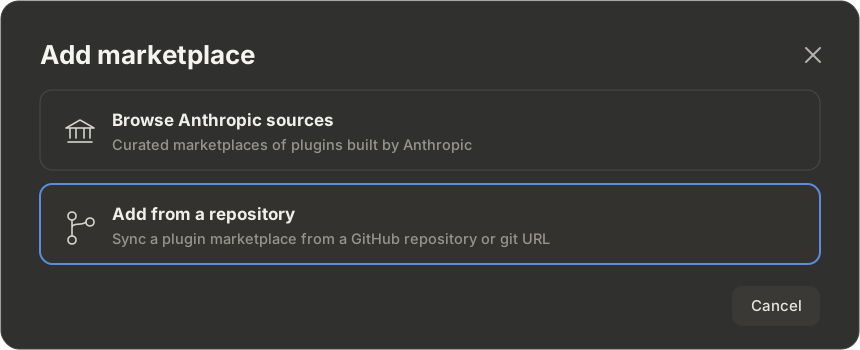
Pick Add from a repository — the Levirge marketplace syncs straight from GitHub.
3 · Sync the marketplace
Paste the repo into the URL field and click Sync:
levirge/search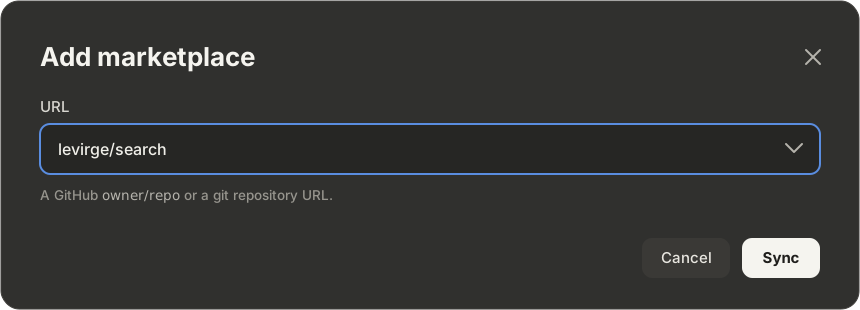
4 · Enable the plugin
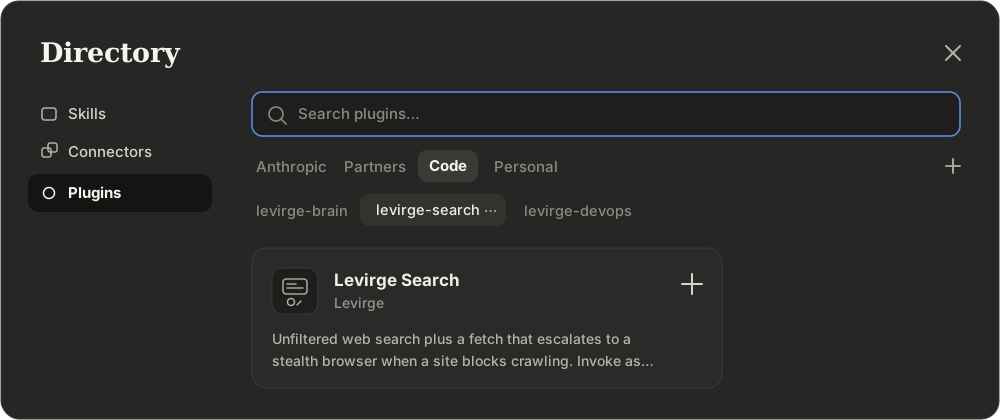
Click Browse to open the Directory, pick the levirge-search marketplace under Code, and click + on Levirge Search.
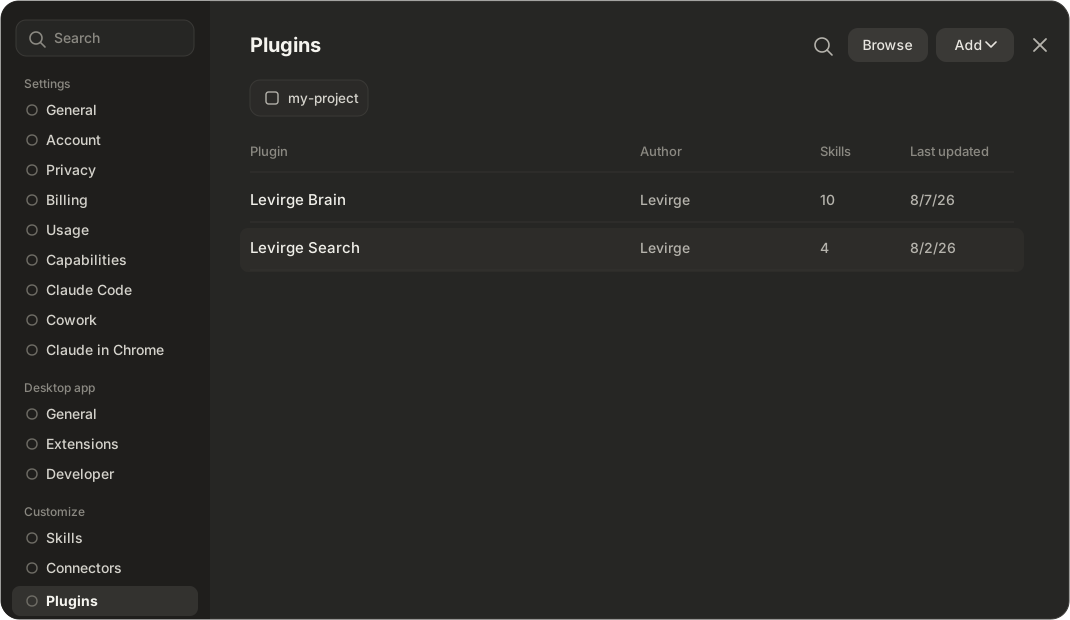
5 · Done — Search is installed
Levirge Search now sits in your plugin list. It connects the MCP server and
adds the /levirge-search:* commands. Sign in when a chat first uses it.
Without plugins: add it as a connector
On the free plan, or if your organization has plugins turned off, add Search as a
custom connector instead. You get the tools but not the /levirge-search:* commands.
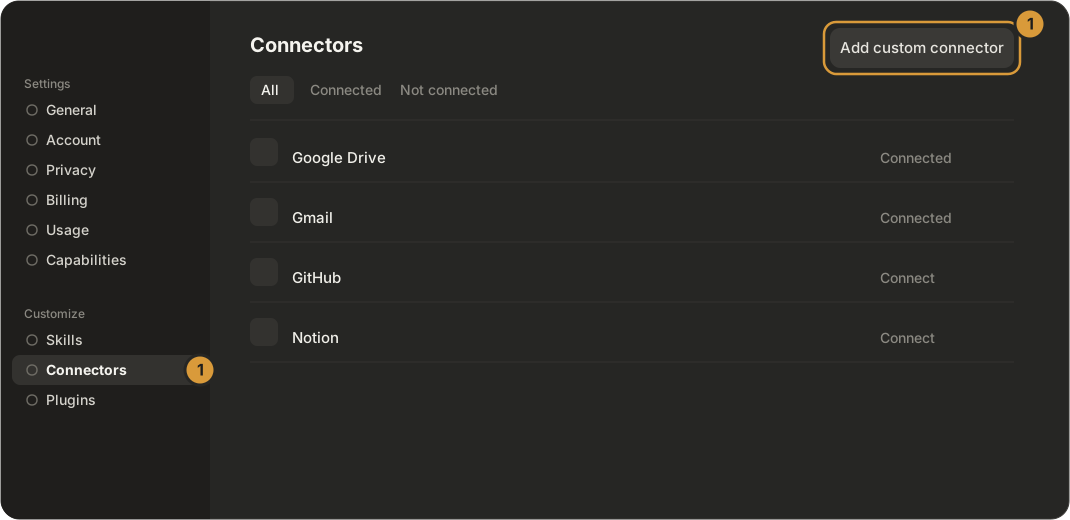
1 · Open Connectors
Open Settings → Connectors and click Add custom connector.
2 · Name it and paste the address
Name it Levirge Search, paste the URL below, and click Continue.
https://search.levirge.com/mcp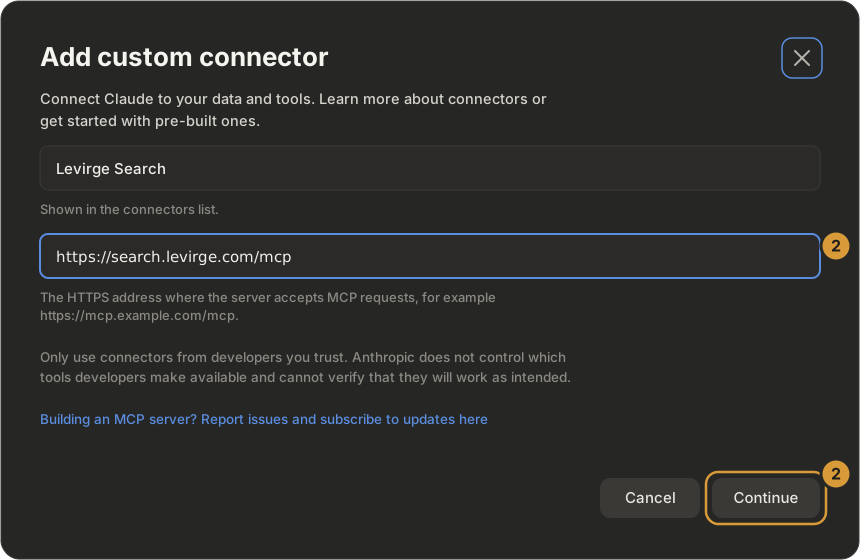
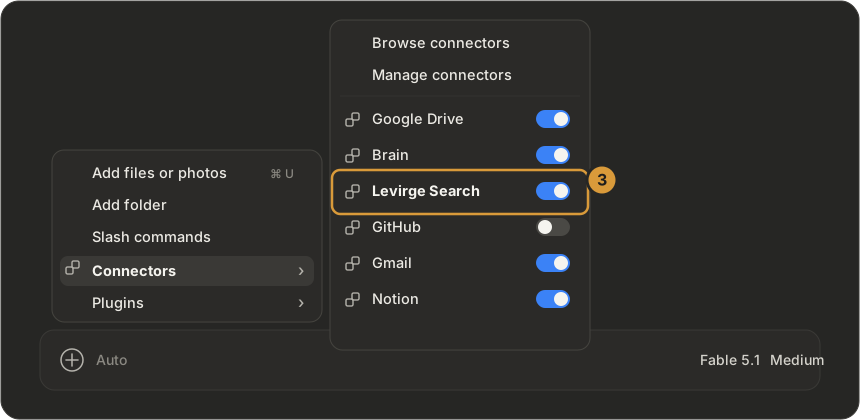
3 · Connect and turn it on
Click Connect and sign in. Then in a chat press +, open Connectors, and switch Levirge Search on.
Team or Enterprise? An owner adds it once under Organization settings → Connectors → Add → Custom → Web; each member then clicks Connect under Settings → Connectors. Free plans allow one custom connector.
Other clients
Every other client installs from the Search page. No account yet? Sign up or talk to us.