Install in VS Code
Add Levirge Search to VS Code and GitHub Copilot: MCP: Add Server, start the server, allow sign-in.
Needs GitHub Copilot installed and signed in: the tools run inside Copilot Chat.
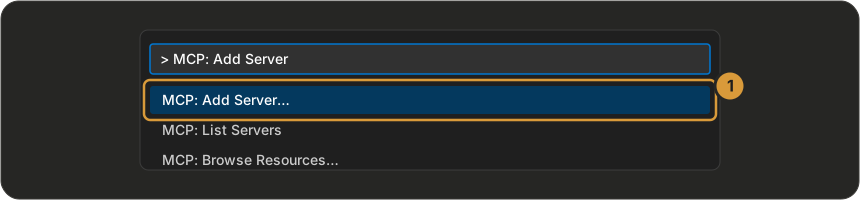
1 · Run MCP: Add Server
Open the Command Palette (⇧⌘P / Ctrl+Shift+P) and run MCP: Add Server.
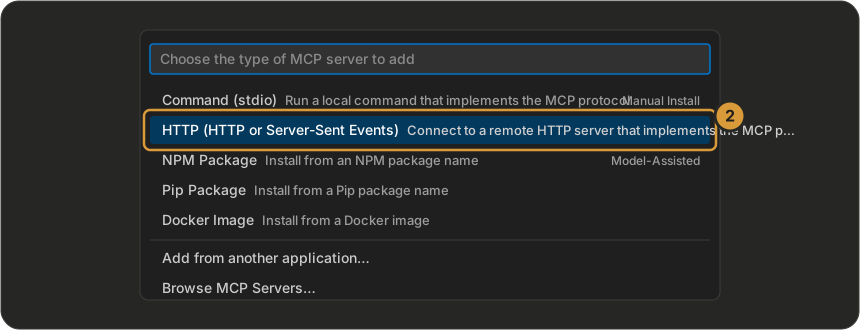
2 · Choose HTTP
3 · Paste the address
https://search.levirge.com/mcp
4 · Name it
Type levirge-search as the Server ID and press Enter.

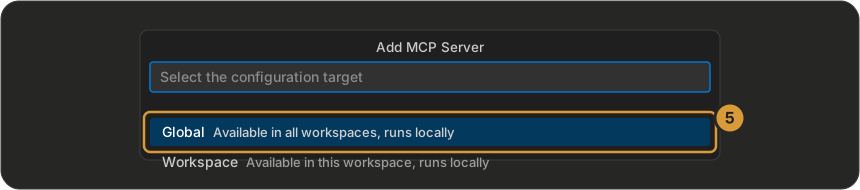
5 · Choose Global
So it works in every workspace.
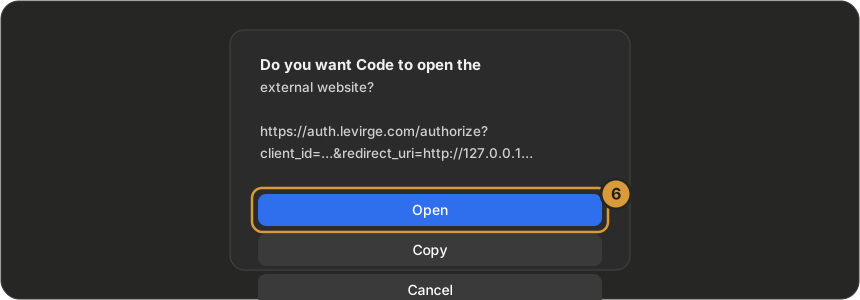
6 · Allow sign-in
Click Allow when VS Code asks to authenticate to auth.levirge.com, then Open when it asks to open the website, and sign in in the browser.

7 · Use it
Open Copilot Chat in Agent mode, click the tools icon and make sure levirge-search is ticked.
Prefer the file? VS Code writes this into your user-level mcp.json (open it with
MCP: Open User Configuration). After saving, run MCP: List Servers →
levirge-search → Start Server, click Allow, then Open, and sign in. Add
headers with Authorization: Bearer <your-token> to use a token instead:
{
  "servers": {
    "levirge-search": { "type": "http", "url": "https://search.levirge.com/mcp" }
  }
}
Then ask it a research question, or verify with a read-only call —
stealth_list returns the stealth-domain registry.
Need a token instead?
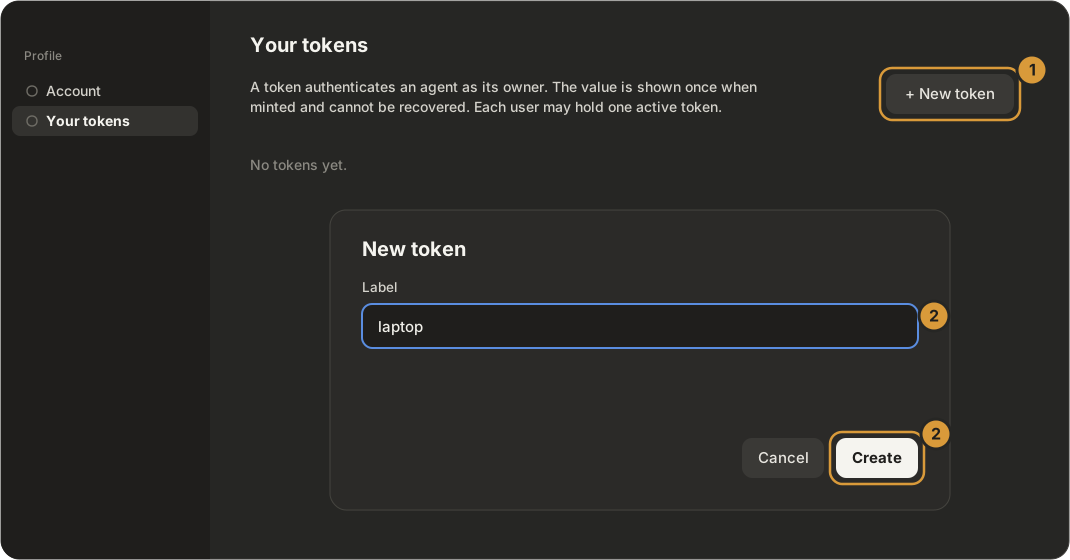
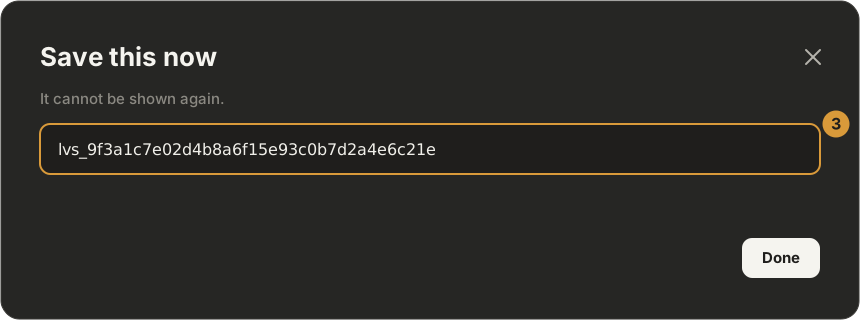
Sign-in is the default. If your client cannot open a browser, mint a token on Profile → Your tokens — click + New token, label it, Create, and copy the value straight away (it is shown once).